RBENREJEB@RBR-OS:/OPT/DATAFORM-INTELLIJ-PLUGIN/FEATURES/DATAFORM-PANEL$ CAT README
Dataform panel
Dataform Plugin for IntelliJ · Features
The Dataform Tools tool window, on the right side of the IDE, connects the local project to a Dataform repository in Google Cloud. From it you choose the repository and workspace, browse the remote files, move files between your computer and the workspace, and commit and push the workspace to Git.
Before using it, sign in and add a repository as described in Configuration.
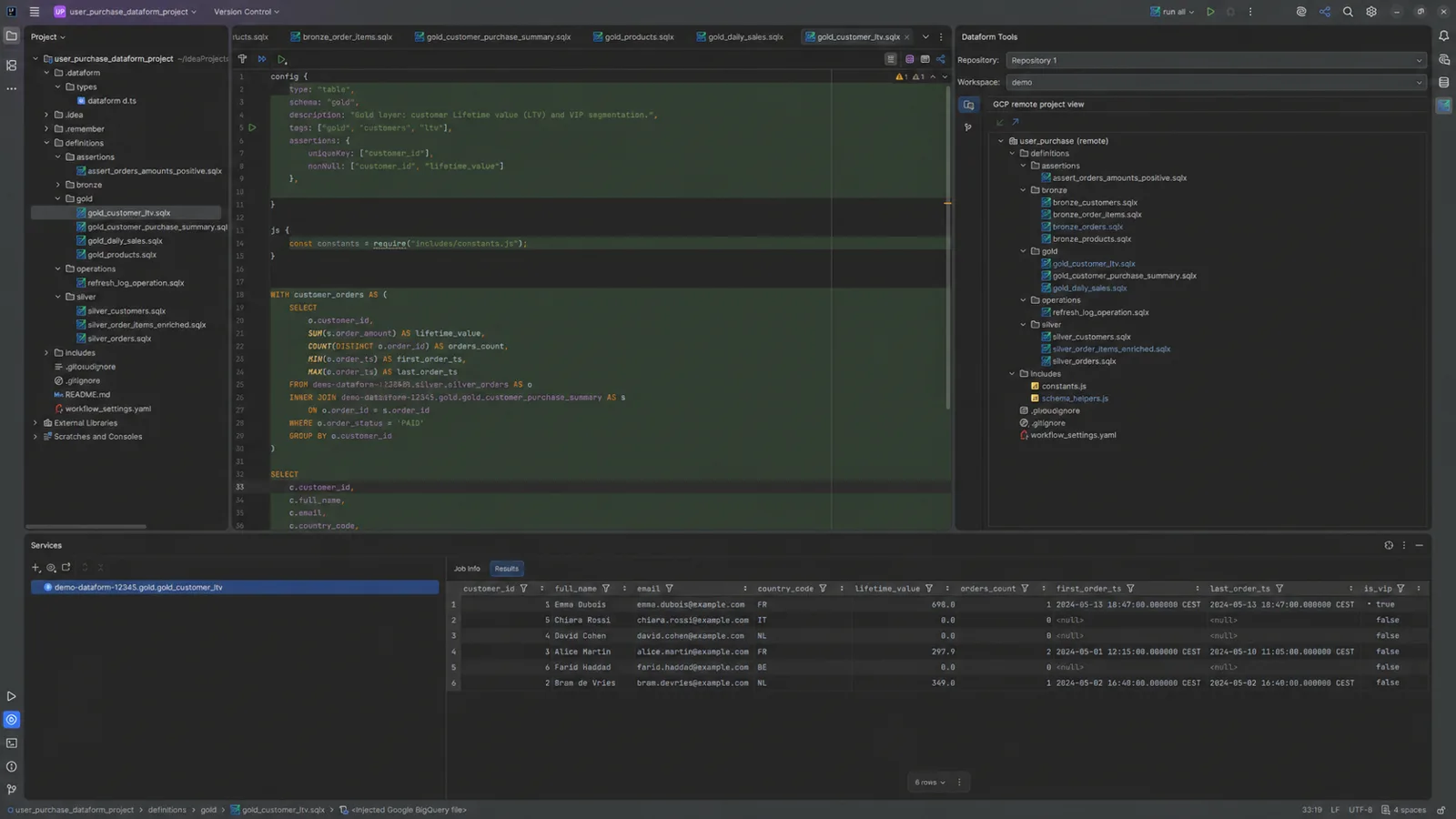
Layout
| Area | Content |
|---|---|
| Title bar | Refresh, Create Workspace, Manage Repositories and Sign In / Sign Out. |
| Repository | The active repository, from the entries you configured. |
| Workspace | The workspace to work with, or No workspace (repo main) for the repository’s main branch. |
| Files tab (folder icon) | The remote project view: the files of the selected workspace. |
| Commit tab (branch icon) | The uncommitted changes of the workspace, a commit message and the commit buttons. |
Workspaces
The Workspace selector lists the workspaces of the active repository. Use Refresh in the title bar to reload the list after a change made in the Google Cloud console.
To create a workspace, click Create Workspace in the title bar and enter its name. Select a workspace before pulling, pushing or committing; with No workspace (repo main) you can only pull the repository’s main branch.
Remote files
The Files tab shows the file tree of the selected workspace. File names are coloured like in IntelliJ’s Git integration, from the workspace’s uncommitted changes:
| Colour | Meaning |
|---|---|
| Green | Added in the workspace |
| Blue | Modified |
| Grey, struck through | Deleted |
| Red | Has conflicts |
Right-click a file for Compare with local, which opens a diff of the local and remote versions, or Fetch, which copies that file from the workspace to your project. Right-click a folder to Fetch the whole folder.
Pull and push
The toolbar of the Files tab has two buttons:
- Fetch Files from Workspace to Local (pull) copies the files of the selected workspace, or of the repository’s main branch, into your local project.
- Send Local Files to Workspace (push) uploads your local project files to the selected
workspace. Files excluded by
.gitignoreor.gcloudignoreare not sent. When files exist in the workspace but not locally, the plugin lists them and asks before deleting them from the workspace.
Pull and push only move files between your computer and the Dataform workspace; they do not create Git commits.
Commit and push to Git
The Commit tab works on the workspace in Google Cloud, like the Dataform web editor:
- The tree lists the workspace’s changed files. Check the files to include.
- Type a Commit message.
- Click Commit to commit them in the workspace, Push to push the workspace’s commits to the repository’s Git remote, or Commit and Push… to do both.
The commit author is taken from the Google account you are signed in with. Use Refresh in the tab’s toolbar to reload the changes.
Compare a file with its remote version
Outside the tool window, Compare File with Remote compares a local file with its version in the selected workspace. It is available from the editor’s context menu, the Project view’s context menu and the Compare actions.